Showing posts with label how. Show all posts

Saturday, November 22, 2014

How to Perform a Soft Reset or Hard Reset Samsung Galaxy S GT I9000

Soft
In thisguide for Android Samsung Galaxy S GT-i9000, We will learn how to soft and a hard reset to factory modetoSamsung Galaxy S i9000.
The first step for " Hard Reset Samsung Galaxy S GT-I9000 " or soft reset, what we do when there is no other solution to the problem, the errors with improperly installed or uninstalled applications, or you forget the unlock pattern or password, probably your phone is locked and not responding etc.

AHard Reset Samsung Galaxy S GT-I9000 will erase all data from the mobile, so before doing this, we will make a backup of all our data, documents, contacts, messages, files, ringtones, videos, pictures or etc..
Soft Reset
If your device is frozen and not responding, we get the option as we see in the picture below with the help of this we can easily restart the mobile, It is basically called "Soft Reset".
reset
If this does not solve the problem, try to Factory data reset.Remove the SIM card and on the home screen, press: 
  •  Menuand selectSettings → Privacy → Factory data reset → Reset phone → Erase everything.Attention, all phone data erased.
Another way to do a Hard Reset Samsung Galaxy S GT-I9000is through the keypad of your cellular, So just remove the SIM card and enter this code:
  • *2767*3855#Warning, all data on the phone will be erased.
If it also doesnt work for you, Then you could better try this method below:
  • First turn off the phone.If locked, then just remove the battery of phone.
  • Hold the volume down button + home button + power button for 2 or 3 seconds.
  • It will display a menu with Fastbook, Recovery, Clear Storage, and Simlock.
  • SelectClear Storageusing the Volume Down button.
  • Press and release the power button.
  • Finally, we confirm the process: select YES with Volume Up or No with Volume Down.
  • Congrats, Youre done!!

Tuesday, November 11, 2014

How to Install Vodafone 3G USB Modem on Ubuntu

Configure Vodafone 3G Modem on Linux

Vodafone offers HUWEI K3570-Z USB Stick for their 3G wireless broadband plans. If youve purchased this 3G USB Modem from vodafone then its very easy to surf on windows. The real challenge is in connecting the modem to linux operating system and get it working. In this hub youll learn how to connect this modem to linux distro - ubuntu. The Information presented on this hub applies to any other linux distro but you have to find respective files from repository on your own as i cant cover installation instruction for every distro out there.

As per my testing current tutorial works for :

  • Ubuntu 10.04/10.10/11.04/11.10
  • Kubuntu
  • Fedora
  • Eee PC


There are two ways to connect USB Modem to ubuntu. First method involves installing usb-modeswitch library and manually mounting the USB drive. Second method involves usage of sakis3g library that makes connecting to the internet very easy. So its upto you to choose any one of these methods and get yourself connected to the internet.

Vodafone
Vodafone 3G USB Mounted on Ubuntu

Method 1: Installing 3G USB Modem on Linux

In case of ubuntu you need to open synaptic package manager and download these two libraries. 

usb-modeswitch
usb-modeswitch-data

If youre downloading these libraries via terminal then dont forget to install them. Once you get these two packages installed, you need to set your file manager for manual mount and run for CD and USB devices. So you have to disable the automount andautorun. 

You can do that by following these instructions.

Press ALT+ F2 and type  gconf-editor (Without the quotes)

Youll find new window with configuration settings. Click on apps folder and then navigate to nautilus, double click on preferences directory. Youll see some options of right hand side panel. 

Uncheck the following options:

  • media_automount
  • media_automount_open


Check this option

media_autorun_never

This step will stop ubuntu to open 3G USB modem device as a folder and it just mounts the device when you connect to it. Now that you have everything setup, you can create configuration for this USB modem in network connections. You can connect to the internet by browsing this new configured profile from here. If you dont find the modem in the list of profiles, you can reboot the machine again by keeping USB stick connected. This way youll find the profile in the list and you can connect easily.

Method 2: Sakis3g Script to Connect USB Modem

In comparison to previous method connecting your modem using sakis3g is relatively easy. It has usb-modeswitch library built-in and it also supports many vodafone and other network regions around the world. Sakis3g has many ubuntu python developers that are maintaining vodafone support on this script. 

Following 3G USB Modems are tested and found working with sakis3g:

  • ZTE K3570-Z
  • K3565
  • K3765


For ubuntu follow these steps to install sakis3g. 

sudo apt-get install ppp
cd /usr/bin
wget http://www.sakis3g.org/versions/latest/sakis3g.gz

sudo gunzip sakis3g.gz
sudo chmod +x sakis3g

Here im using sudo before every bash command because ubuntu requires sudo permissions to do anything on bin directory. Once you get it installed just run the following command on terminal. 

sakis3g status

If its installed successfully you can proceed to running the script with command sakis3g. If not then you have to clear all the dependencies issue or any other issue. 

Entering the sakis3g command in terminal will open a small window that asks you to choose options. First option is connect to 3g. Select this option and click OK. Next option will ask you to choose between interface 3 or 4. Choose interface 3 and click on OK button. Next option wil ask you to choose generic driver or kernel driver. Choose generic driver and see if installation proceeds. Dont worry if it throws errors. Just keep on changing the options until it works. Then finally when you get option for APN_username and APN_Password. You have to consult with your vodafone operator for help. Or just ask in regional forums for help. In my case vodafone india has www as username and blank password. It worked for me but it may not work for you.

Sakis3g quits while entering the pin in some cases but I simply restarted the script every time and randomly it worked. Once it works, Just create an desktop shortcut to save your future hassles of entering the details. At the end, you have to keep testing. 

Once you get the sakis3g running, itll tell you that its connected. Dont forget to have desktop shortcut for sakis settings as it makes it easy for you to run the connection script every time you boot or whenever you want. 

Hope this helps to those who are searching for a way to connect their vodafone usb modem to the internet.

Monday, November 10, 2014

How To Make An Android App Game

With 850,000 new Android devices being activated daily, many keen gamers grow up wanting to develop their own games. Many of them are put off by the coding aspect of software development. With the advent of smartphones and Android Market, the smartphone/tablet software market has started booming, not that the software market has ever been weak. A good enough Android app priced at approximately £2 could easily generate 10,000 downloads or more. Thats £20,000+

It costs $25 to sign up with Android Market as a developer. However, technology companies are hoping that tablet PCs will eventually completely replace laptops and netbooks and become the main way of computing.

What many young potential developers dont realize is that its not an absolute necessity to be able to code in order to get into the software industry. You do not need to be a computer programmer. In fact, there are many software tools available that take the coding aspect completely out of development leaving you with just a set of commands and customizable settings that allow you to build a game or app from scratch, similar to WYSIWIG (What You See Is What You Get) web design tools such as Microsoft Frontpage or Web Expression.

The Coding Method

As most programmers will already know, Android apps and games are based on Java therefore many developers will use the Eclipse IDE (integrated Development Environment) along with the Android SDK (Software Development Kit) plus the ADT plug-in in order to create Android software - sounds stupidly complicated already eh?! To create software programs this way requires a knowledge of coding in Java. Learning this method is advised if you plan to take your software development to a serious level, although it does require a strong understanding of the basic fundamentals of computer programming: variables, integers, functions, methods, loops, etc - this is not as difficult as it first appears to be and is much easier than learning to speak a language like French or Spanish. However, for the beginner there are much easier ways to get started developing your own Android apps which will familiarize you with the way they work and to be honest, trying to use Eclipse even just for the basics can be ridiculously difficult to do and thats if you can even get Eclipse working in the first place which requires about three days of downloading and installing other software to get your development computer set up. Personally, I find Eclipse a complete and utter waste of time.

Google Labs App Inventor

Update: App Inventor has now shut down and is moving to MIT Center for Mobile Learning.

App Inventor is a new online creation facility by Google Labs, that allows users to create Android apps by using a drag and drop interface. You simply load in all the graphics and sound that your app is going to use, arrange it on the screen and select what happens when certain items are clicked. The system is relatively easy to use and compiles your app or game into a downloadable .apk file. The app or game can then be installed on compatible Android devices. People who dont have an understanding of how software programs operate should read the online manual first. Its easy once you know how. The only current disadvantage to App Inventor at the moment is that you are not able to upload your apps or games to Android Market although Google are working on a solution to this. However, you can host the downloads on your own site or elsewhere as most people set their Android devices to allow installation of third party non-market apps to avoid compatibility issues.

Appsgeyser

Appsgeyser is another useful app creation tool that lets you build Android apps or game from already existing content. Appsgeyser is extremely easy to use in that you can simply type in the web address (url) of your own website and Appsgeyser will automatically convert it into an Android app for you. However, you should ensure that the pages of your site are set to the correct size for a standard Android app or the pages will be too big to fit the screen. Appsgeyser also allows you to monetize your apps either by placing ads in your app or selling them ad-free via the Appsgeyser network. They also have free educational resources that they claim can help lead your app towards success. Rather interestingly, Appsgeyser also supports HTML 5 to add advanced features, the ability to send pop-up notifications to your apps and advanced statistics so you can see how many times your app has been installed.

Once you have finished building your Android app Appsgeyser then allows you to download the .apk file which is the installation file that will be downloaded to Android devices. If you so wish you can then upload this file to sites such as Google Play (Android Market) and SlideMe Market. Any apps made with Appsgeyser are automatically hosted on their own network.

Andromo

Note: Andromo have now started charging a subscription fee for their service. For anyone who already has apps made at Andromo, this now means that you can no longer even update your apps unless you pay for a subscription. Whilst discount rates have been offered to already existing members I cant help feeling a bit ripped off by Andromos secret plans. I would therefore now recommend one of the other services.

Thirdly and finally, Andromo is yet another online tool that lets users create their own Android app for free with no programming or coding skills required. Andromo lets you mix and match a variety of features and components that allow you to build your own professional Android app plus more features are continuously being added. Andromo supports interactive maps, photo galleries, blogs and feeds, video playlists, custom pages, websites, HTML & CSS, MP3 music, soundboards and much more making it a full-on WYSIWIG Android app creation tool. Andromo claim that their users have, so far, created 9,398 apps which have been built 12,719 times (at the time of writing). Andromo had over 11,000 users sign up within a few weeks of going into beta.

As with Appsgeyser, Andromo lets you download the .apk file of your app which you can then upload to your choice of Android Market. There are also options to include your own advertising in your apps so that you can earn money from them.

Uploading To Android Markets

Once youve got your .apk file which is ready for installation on Android devices, the next step is to get them hosted online. Although both Appsgeyser and Andromo have their own networks where your app can be downloaded by users, you can reach an even wider audience by uploading it to the Android Markets, of which there are several:

Google Play (previously Android Market) - Google charge a $25 for anyone who wishes to sign up as a developer. There are also restrictions and requirements for your app which you need to check before uploading your app.

SlideMe Market (Original Android Market) - SlideMe claim to be the original Android Market and claim that they were in existence before Google Play/Android Market. SlideMe Market is a simple solution for those just getting started in Android development, as you can sign up for free and upload your apps straight away. Each app must have at least two images associated with it - an icon and a screenshot. As long as these requirements are met then you should have no problem publishing your app.

TechNewport Market (New) - If you experience any problems uploading to Google Play or SlideMe then your third option is to upload to TechNewport Android Market. There are currently only a small collection of apps available as the site is independent and relatively new. However, the only restriction imposed by this service is a 5MB file upload size. Your app should also have an icon and a screenshot.

Thursday, October 30, 2014

How to freely enjoy your DVD collections on Windows 8 1 8

If you get a new Windows 8 or 8.1 computer, you might be surprised to find out that it wont play your DVDs as Microsoft. In fact, Windows 8.1 still can’t play DVD movies out of the box. To get DVD playback from Microsoft, you’d have to buy the Windows 8 Pro Pack for $100 and the Media Center Pack for $10 — and that only gets you DVD playback!


Then how to avoid paying Microsoft another $110 and let you enjoy DVD collections freely? Here offers the best way to get DVD playback on Windows Windows 8.1/8.

What you need:

To play your DVD movies without any hassles, you need to look for a DVD ripper that is comptible with Windows 8/8.1 to help you rip DVD in Windows computer. Look no further! You’ve come to the right place.

Here, Pavtube DVDAid is highly recommended for its good reputation, easy-to-use interface and quick conversion speed which makes converting DVD movies in Windows 8/Windows 8.1 AS EASY AS A PIE. In addition, it provides hundreds of video presets for portable devices like iPhone 6, iPhone 6 Plus, iPad Air, Samsung Galaxy Note 4, etc. Don’t hesitate to get it now and follow the easy steps below to make your DVDs playable anywhere in Windows 8/Windows 8.1.

How to rip and convert DVD in Windows 8/Windows 8.1

1. Load DVD movies

Click "DVD disc" icon to load DVD movie files directly from your DVD disc via the DVD ROM.


(Note: Dont forget to select subtitle and audio track for output.)

2. Choose an output format

Click "Format" drop-down list and choose proper format for different using.


For instance, if you simply want to back up DVD to external hard drive, here are two solutions:

a. Click the "computer" icon on the top to output 1:1 DVD file exactly the same as original.

b. Select "Copy > Directly Copy" in format list to output an intact VOB file of the main title.

Tip: If you are not satisfied with default specs, then click "Settings" to enter Profiles Settings windows. You can customize video frame rate, bitrate, size and other settings freely. (It does not work for directly copy)


3. Start ripping

Click "Convert" button to start ripping Blu-ray movies on your Windows 8.1/8. When finished, click "Open" button to get the resulted video. Then connect your portable devices to your computer and transfer ripped DVD movie for watching and viewing with best video quality on the go.

Tuesday, October 28, 2014

How to enable local languages in mobile browsers

The use of mobile phones has been dramatically increasing since its inception, this rate has increased more quicker after introducing mobile internet, now people can do about all the task what they used to do in a computer, now browsing a website on mobile is like browsing a website on your PC.

    But somehow it fails to give us all the pleasure that we can have in a computer, the first thing is the display, we always prefer larger view rather than smaller, and secondly all mobile browser can not show all the languages properly that is it can not read the complex scripts like our local languages. However the problem may not occur in Unicode enable mobile phones. Today I am going to discuss the second problem that is viewing multiple languages or local languages in a mobile browser, in this tutorial I will take the Opera mini browser as an example, but you can generalised it to all the available bitmap font enabled mobile browser. So here I go.. 


Follow the following steps
1) Open your mobile browser ( eg. Opera mini)
2) Type about:config on the address bar and hit Enter
3) Now you will see multiple options
4) Find out the option called Use bitmap fonts for complex scripts
5) By default it remains as No, change it to Yes 
6) Finally click on Save
You are done, now you can view complex scripts easily on your mobile devices. 

Sunday, October 26, 2014

How to Find Out Where a Picture Was Taken

Googles images search is a fantastic Internet tool to search for images. Its like an ocean which is only filled with both low and high quality images. Each and every photo present in the search engine results is belongs to its author who have uploaded their images to Google +, Flickr, Picasa, and to their websites. If you type a name on Google images, you could browse through the abundant pictures related to what you have typed.
Assume, if you have a picture saved it in your computer which is taken from Internet but dont know the details of the particular picture, then what you will do? To get the answer, you could simply use the same Google images tool. By using Google images you could be able to discover where the photos was taken from by uploading an image. It will show the exact picture or related pictures. Its is called as reverse image search. Possibly it may also depict the exact location of a picture. 

Read: How hide pictures,music and videos on Android

Many people didnt notice the "search by image" feature even though it is screened in front of our eyes. Here take a look:


How To Use?

  • Go to Google images.
  • You could see a camera logo saying Search by image  in the search box.
  • Click on it and select "Upload an image" option.
  • Choose file and upload an image from your computer.
  • Another easy method is that, just drag an image from any web page and move it to Google images search box.
  • Also browse through the Google search results which is indexed.


    The result will surprise you if the picture is available in the Google Images database.

    Read: Prevent your Facebook profile from being blocked by Facebook

The drag and drop image feature is not supported by Internet Explorer but in such case, you have to use the camera logo option to upload an image.

Image Information

  • Get the entire details about the picture like where it was taken from? who is the author  of the image? what was the images is all about?


    Track Your Own Images

    • You can use this Google images tool to track your own pictures whether it has been used in some other websites or not in case if you have uploaded your picture to Internet.

    How To Find Out If Someone is Fake?


    • You could identify a fake profile picture of a persons account who were using social media sites such as Google Plus, Facebook, etc. For example, if the profile picture of an ID is present somewhere in the Internet with some other name, you could doubt that the profile picture is may be duplicated. This falls under any one of the following two categories based on timings. i.e., either the image used in the profile was then copied by some one or he/she uses the image in their profile which was copied from somewhere.

Saturday, October 25, 2014

How to Optimize Computer start up time

We can optimize our Computers start up time. There are several programs like web cam, Facebook messenger, Facebook update, adobe updates, and audio enhancement programs like dfx, srs etc that automatically run with computer start up, for which computer takes more time to open up. If we disable these programs, then the computer will start faster than before. We can do this by using MSConfig. 


What is MSConfig
MSConfig is also known as Windows system configuration in Windows Vista, Windows7 and Windows 8 and as Microsoft System Configuration Utility in previous versions of Operating systems. It troubleshoot the Microsoft Windows Startup process. It can disable or enable software, drivers and windows services which runs at computer startup. It can also change the boot parameters. 

Follow the following steps carefully
1) Press Windows key+R to open up Run wizard,after that type in msconfig and hit enter or click Ok
2) After that a window will pop up like this


Go to Startup 


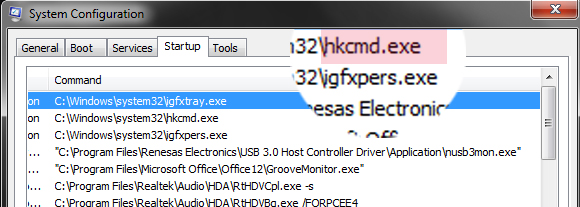
Uncheck all the programs that you do not need at start up and then click ok,if you can not recognize the program functionality i,e why we need this program is it necessary at start up,then simply expand the command tag and note the last portion after the last slash (see the following image) and search it on Google.Google will provide the informations.


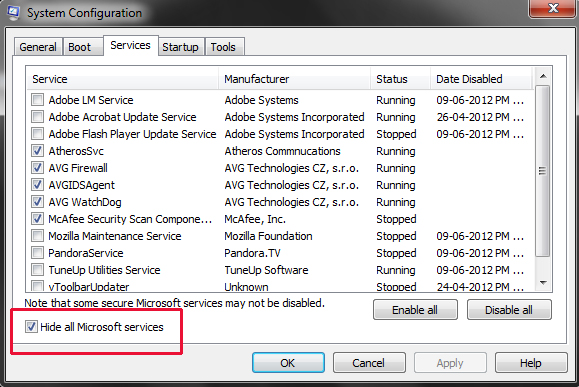
3) After the startup menu go to the menu called Services and click it,and then check Hide all Microsoft services as i show in the following image,and after that you uncheck all the services that you do not need at start up and hit ok and then apply.If you do not know what is the service of a specific program search it on Google.


After applying all the changes do Restart your Computer,and see the changes. Cheers
 

Saturday, October 18, 2014

How to get Amazon Instant Video working on Samsung Galaxy Tab 3

In the following article you can learn about how to legally get rid of DRM copy protection from Amazon WMV to freely play on Samsung Galaxy Tab 3 anywhere you like.
Global digital media and digital convergence technology leader Samsung Electronics in Seoul, South Korea released the Samsung GALAXY Tab 3 Series Tablet, they will join the previously released Samsung GALAXY Tab 3 Series 7 inch tablet together to provide consumers with richer choices. Samsung GALAXY Tab 3 provides consumers watch, listen, creativity and close friends to share unforgettable moments with family and friends and especially the content of a variety of ways. Whether at home, or on the way to work, the Samsung GALAXY Tab 3 is the perfect choice to capture moments of life.


Now you want to put some Amazon Instant Videos to Galaxy Tab 3? Wait a minute. The Amazon Instant videos, though mainly .wmv format, are not supported by Galaxy Tab 3. The problem is, those WMV videos you downloaded from Amazon are protected (by DRM), and cant be played on any Android tablet except for the Amazon Kindle Fire. To get the Amazon WMV playable on Galaxy Tab 3, youll have to remove the DRM protection first.

To transfer Amazon WMV movies to Galaxy Tab 3, you need a powerful Amazon WMV video DRM removal or a WMV video Recorder for Galaxy Tab 3. Pavtube ChewTune is exactly the ideal tool that makes it possible to watch Amazon DRM-protected WMV videos on Galaxy Tab 3.

ChewTune for Windows | ChewTune for Mac

Read more: Pavtube ChewTune Review - Free M4V/WMV videos from DRM protection

Read before try

1. Make sure that your computer is authorized for source videos, that is to say you can play the Amazon WMV video using Windows Media Player.

2. During the installation your computer will pop up a Windows Security dialogue box saying “Windows can’t verify the publisher of this drive software”. Ignore it and choose “Install this driver software anyway” to continue installing Pavtube ChewTune.

3. At the end of installing, the setup wizard will install Audio Driver onto your computer automatically through windows command line. This will take a few minutes. Don’t skip or abort, it is essential for running ChewTune correctly.

4. It would take as long as the source movie length for the whole Amazon Instant video to Galaxy Tab 3 conversion process since Pavtube ChewTune records source DRM videos in 1:1 video and audio quality.

Remove DRM protection off Amazon video and convert WMV to Galaxy Tab 3

Step 1: Load Amazon WMV video files to Pavtube ChewTune.

Install and launch the Pavtube WMV to Galaxy Tab 3 Converter, then click the add button to load the WMV video files to the program.


Step 2: Choose H.264 codec format for the Galaxy Tab 3 playing.

Click "Format" and select an output format for the Galaxy Tab 3. Here I choose " Samsung -> “Samsung Galaxy Tab 3 Video(*.mp4)".


Step 3: Optimize the settings for Amazon video to Galaxy Tab 3 conversion.

If you find the default settings may not satisfy your need, can click the "Settings" button to change the settings by yourself.

Step 4: Convert Amazon video to Galaxy Tab 3 video format.

Having finished the settings? OK, just click the convert button and start to convert Amazon video to Samsung Galaxy Tab 3 format with ease.

When the conversion task is finished, you can click "Open" button to get the final output files for your Samsung Galaxy Tab 3 and transfer the converted videos to Samsung Galaxy Tab 3.

If you have music and videos to watch on the tablet, heres a guide for copying local videos to Samsung Galaxy Tab 3.

  • How to connect and transfer video files from PC to Samsung Galaxy Tab with Kies

Tips: MKV, MOV, TS, MPG, Tivo, FLV, F4V and some AVI videos are not accepted formats and you have to convert them to Galaxy Tab 3 optimized H.264 .mp4 videos before downloading them to the device.  

How To Unsubsribe From All Annoying Email Newsletters In One Click

E-mail is a wonderful On-line tool to send and receive mails instantly without any issues. Almost all the websites allows you to receive mail alert or newsletters frequently based on their updates if you have subscribed to them. But is that mean all the websites sending you relevant information through E-mail? Is it seems to be useful and curious to read always? The answer is may be No. If the mail id is for your personal use,
then the truck full of annoying mails(example: daily digest,weekly digest, daily deals) will solely bothers you more. Chances are that you cant browse through the important mails and besides you may get missed to read your favourite newsletters. For me too, the loads of unwanted mails ruined my inbox. Its a big mess. So how to get rid of those annoying e-mail newsletters in a single click? I have searched over the Internet and came up with the possible solution to unsubscribe from receiving unwanted or annoying mails. The solution is give below. 

Read: Alternative to Internet Download Manager 


Swizzle

The Swizzle sweeper helps you to easily and securely unsubscribe from all the e-mails which you no longer wish to receive those newsletters. All that you need to do is just visit the site, then enter your e-mail address and then proceed by clicking go.

It will show you a list of e-mail senders if you have already subscribed to them. Choose the sender as of your choice, then click the delete button to unsubscribe.


The Swizzle is a simple, fast and free tool to remove commercial email from your inbox.

Unroll

Unroll.me is just similar to Swizzle but the one thing you need to do is that you have to sign up first. After you sign up, see a list of all your subscription emails. Unsubscribe instantly from whatever you don’t want ever.


Based on reviews, I can tell that unroll.me is the best way to clear the junk mails.

Conclusion

Before you wish to unsubscribe from any mail updates, you must need to be signed in to your mail account. So now what? just go ahead to stop receiving unwanted annoying e-mails instantly if you wish to do it.

Friday, October 17, 2014

How to Use SmartShare on LG G Pro 2

The SmartShare application uses DLNA (Digital Living Network Alliance) technology to share digital content through a wireless network. Both Phones must be DLNA certified to support this feature.


 - Tap Sharing requests to select an action to perform when receiving sharing requests.
 - Tap Receive files if you would like to allow the other devices to upload media files to my phone.
4. Tap Shared contents and select what type of file you want to share.
NOTE: Make sure that the Receive files option in the Settings menu is checked.
5. SmartShare is now activated and ready to share contents.

To control your renderer devices

Let your renderer device (e.g. TV) play multimedia contents from your remote content library (e.g. PC)

NOTE: Make sure that the DLNA functionality of your devices is properly configured (e.g. TV and PC)

1. From the Home Lcd, tap the Apps Key > SmartShare icon.
2. Tap the Player button and select the device from the renderer device list.
3. Tap the Library button and select the device from the remote content library.
4. You can browse the content library.
5. Tap the Menu Key > Play.

To share contents from your phone to your renderer device (e.g. TV) 

NOTE: Make sure that your renderer device is properly configured.

1. While viewing pictures and videos in the Gallery application, tap at the top of the Lcd.
2. Select the device from the renderer device list to play the files.

NOTE: Follow the similar steps to use the Music, Videos or Polaris Office to share contents.

NOTICE: Check that your device is connected with your home network using Wi-Fi connection to use this application. Some DLNA enabled devices (e.g. TV) support only the DMP feature of DLNA and will
not appear in the renderer device list. Your device might not be able to play some contents.

To download contents from the remote content library

1. From the Home Lcd, tap the Apps Key > SmartShare .
2. Tap the Library button and select the device from the remote content library.
3. You can browse the content library.
4. Tap and hold a content thumbnail and then touch Download.

NOTICE: A few types of contents are not supported.

To upload contents from the remote content library

1. From the Home Lcd, tap the Apps Key > SmartShare .
2. Tap the Library button and select My phone.
3. You can browse the content library.
4. Tap and hold a content thumbnail and then touch Upload.
5 Select a device from the remote content library to be uploaded.

NOTICE: Some DLNA enabled devices do not support the DMS upload functionality and will not upload files. A few types of contents are not supported.

Wednesday, October 15, 2014

How To Make Your L3 L90 a WiFi Hotspot

Sunday, October 12, 2014

How to Use NFC on Sony Xperia Z2 Share Contacts Music Files Photo or Video and Web Address

NFC feature is a must-have for any smartphones these days.  Near-field communication or NFC works similarly like bluetooth. By touching your NFC-enabled phones against each other, you can then share contacts, music and photos. Well, heres how you can easily share contacts on Sony Xperia Z2 uisng NFC feature.

1. On your Home Lcd, tap the Apps icon Settings.

2. Then go to More.

3. Mark the NFC checkbox.

To share a contact with another device using NFC

1. Make sure that both devices have the NFC function turned on, and that both Lcds are active.

2. To view contacts, go to your Home Lcd, tap Apps icon, then tap Person icon.

3. Tap the contact that you want to share.

4. Hold your device and the receiving device back to back so that the NFC detection areas of each device touch each other. When the devices connect, a thumbnail of the contact appears.

5. Tap the thumbnail to start the transfer.

6. When the transfer is done, the contact information is displayed on the Lcd of the receiving device and is also saved on the receiving device.

To share a music file with another device using NFC

1. Make sure that both your device and the receiving device have the NFC function turned on, and that both Lcds are active.

2. To open the "WALKMAN™" application, tap Apps icon, then find and tap Walkman icon.

3. Select a music category and browse to the track you want to share.

4. Tap the track to play it. You can then tap Pause icon to pause the track. The transfer works whether the track is playing or paused.

5. Hold your device and the receiving device back to back so that the NFC detection areas of each device touch each other. When the devices connect, a thumbnail of the track appears.

6. Tap the thumbnail to start the transfer.

7. When the transfer is done, the music file plays immediately on the receiving device. At the same time, the file is saved on the receiving device.

To share a photo or video with another device using NFC

1. Make sure that both devices have the NFC function turned on, and that both Lcds are active.

2. To view photos and videos in your device, go to your Home Lcd, tap Apps icon, then find and tap Album.

3. Tap the photo or video that you want to share.

4. Hold your device and the receiving device back to back so that the NFC detection areas of each device touch each other. When the devices connect, a thumbnail of the track appears.

5. Tap the thumbnail to start the transfer.

6. When the transfer is done, the photo or video is displayed on the Lcd of the receiving device. At the same time, the item is saved on the receiving device.

To share a web address with another device using NFC

1. Make sure that both devices have the NFC function turned on, and that both Lcds are active.

2. From your Home Lcd, tap Apps icon.

3. To open the web browser, find and tap Chrome browser icon.

4. Load the web page that you want to share.

5. Hold your device and the receiving device back to back so that the NFC detection areas of each device touch each other. When the devices connect, a thumbnail of the track appears.

6. Tap the thumbnail to start the transfer.

7. When the transfer is done, the web page is displayed on the Lcd of the receiving device.

Saturday, October 11, 2014

How to Update Micromax Mad A94 OS

Hi friend, if you want to updating Your Android Mobile to New and Latest Android OS then I am share method for updating your Micromax Mad A94 Android Mobile to Latest Android OS Version.

Update OS to Latest Android OS in Micromax Mad 94

    1. Use WiFi for Updating Your Mobiles OS
    2. After connecting your Mobile to WiFi
    3. Tap on Setting>> About>> Software Update
    4. Click on Yes, then its search for Update for Your Micromax Mad A94 Mobile
    5. If Any Update is available for Your Android Mobile, its shown details then you are able to update
    6. If update is available and you are start updating your Android OS Version then wait for completion of Updating
    7. After that Restart your Mobile
    8. Now access Latest and Updated Android OS version in Your Android Mobile.

Friday, October 10, 2014

How to Find a Lost Nokia Lumia 520


Losing a phone is sort of a matter of life and death these days especially if you have confidential files on it. If you misplaced your phone or someone has stolen it, then keep calm and follow the steps below so you can locate your phone and lock or delete all data on it remotely. All you need to have is a Microsoft account on your phone.


1. On your computer, laptop or tablet, go to www.windowsphone.com

2. Then sign in using the same Microsoft account as on your phone.

3. Choose find my phone. From there you can:

> locate your phone on a map
> make your phone ring even if its in silent mode
> lock your phone and set it to show a message so it can be returned to you
> delete all data from your phone remotely

Also check: Nokia Lumia 520 Tips and Tricks

Thursday, October 9, 2014

How to Save Battery Life on Sony Xperia SP


Battery Life depends on how you use your device. For Sony Xperia SP device, if you want to save your battery to last longer hours, you may need to adjust your settings. Follow these suggestions:

• Turn on the power-saving option on the device. Then lessen the Lcd brightness and theLcd lock timeout. On the HomeLcd, tap on Menu icon. Select Settings Power management.


- Use the Stamina mode and Low battery mode features.
- To activate the STAMINA mode: While you are in the Power management, tap on Point icon next to STAMINA mode, then tap Activate.

• Turn down your device volume with the volume keys.

• Close any apps or features when you are done using it so they will not continuously running in the background.

• Turn off the network connection if you are out of range so that your device will stop searching for a network signal.

• You should use the latest version of the software update. Software updates improves some features and fixes some bugs on the previous software version.

Canon MP 237 Error Codes and How to Solve it


Error code Canon printers, Canon MP 240 MP 240 error if you experience it will be notified with an alarm LED blinking orange lights and displays an error code on the printer LCD computer monitor so that the Printer Canon MP 240 not able to print the data. Canon MP 240 Error code wont show up with a number like 1300, 4899, 5100 and causing printer Canon MP 240 not able to print the data. Canon MP 240 Error code is usually caused because the Paper Jammed, Printer is out of paper, The FINE cartridge cannot be recognized and much more.


The following Canon MP 240 Error Code and how to resolve errors with Error code Canon MP 240:

  • 1000 Canon MP 240 Error: the Printer is out of paper/paper does not feed, marked by blinking 2 x on a Canon MP 240 and to resolve it insert the paper into the rear tray then press the black/color on the Printer
  • Error 6000 Canon MP 240: Paper Jammed, marked by blinking 3x on Canon MP 240 and the fix take paper that concern on the printer.
  • Error 1693 Canon MP 240: The FINE Cartridge is not installed properly, marked 4 x blinking on Printer canon MP 240 and the fix, verify that the installation is correct and the cartridge the cartridge lock.
  • Error 1401, 1403, Canon MP 341 237: The FINE Cartridge is not installed properly, with blinking 5 x and the fix is to install the cartridge properly if it still happens replace the cartridge with a new one.
  • Error 1486, 1490 Canon MP 240: FINE Cartridge is not installed in the correct position, accompanied by blinking 7 x and the fix is to make sure the fitting is correct if the cartridge still occurs try to replace it with a new cartridge.
  • Error Canon MP 880 237: Ink absorber is almost full, accompanied blinking 8 x and the fix is to do a head cleaning on the printer Canon MP 240.
  • Error 1686 Canon MP 240: The remaining ink level cannot be detected, along with blinking 13x because the printer cannot detect the ink levels, press the stop/reset button for 5 seconds to ignore the error.
  • Error 1684 Canon MP 240: The FINE cartridge cannot be recognized, along with blinking 14 because the cartridge is not installed correctly or the cartridge is not compatible with the printer, replace the cartridge with a new one.
  • Error 1682 Canon MP 240: The FINE cartridge cannot be recognized, along with blinking 15 x and the fix is to replace it with a new cartridge because the old cartridge is damaged.
  • Error 1688 a Canon MP 240: The ink has run out, accompanied by a blinking 16 x and fixes press the button stop/reset for 5 seconds.
  • Error 5100 Canon MP 240: Paper Jammed accompanied blinking 2 x and fix clean paper comes on a printer.
  • Error B200 Canon MP 240: Blinking 10 x, turn off the Printer and then unplug the power cable connect to the electricity for a few minutes then plug it in and turn it on again.

Some code error on printer canon MP 240 4899, among others, 5012, 5200, 5400, 5700, 6800, 6801, 7000, 6930, 6931, 5B00, 6932, 6933, 6936, 6937, 6938, 6940, 6941, 6942, 6943, 6944, 6945, 6946 and the fix is to unplug the printer power cable connect to the electricity for a few minutes then turn it on again.

Good Luck

Wednesday, October 8, 2014

How to Set HTC One SV into Sleep Mode


Like any other device, setting HTC One SV into sleep mode will somehow save its battery life. Sleep mode puts your device into a lower power state while the display is off. It also prevents accidental button presses when its in your pocket or bag. Heres how you can set HTC One SV into sleep mode.

1. Briefly press on your devices Power button to turn off the display.  Then switch to Sleep Mode.

2. To change the time before your device sleeps, just go to Display, then gestures & buttons settings.

3. To wake it up, manually press the Power button and unlock your Lcd.

4. Your device will also automatically wakes up when you have an incoming call.

Sunday, October 5, 2014

How To Manually Block Sites Using Notepad


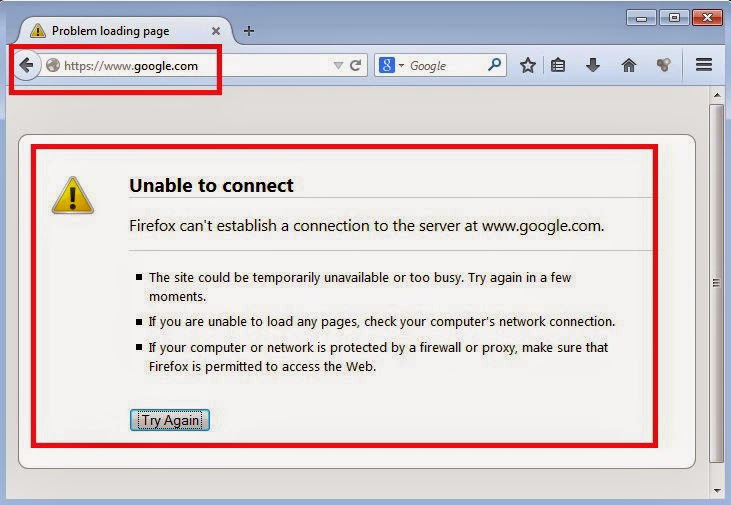
Is therean easy waythat could be doneto blockspecific siteswithout the need toinstallthird partyapplications.Simplyutilize theNotepad,you canrestrict access tothose sites.However, becausethe processusesNotepad, thenblockingis only validon the computeryou useonly and arenot valid onother computersthat residein a singlenetwork.Heres how:


1.open Notepad
Open theNotepadapplicationusingaccess privilegesas an administrator.

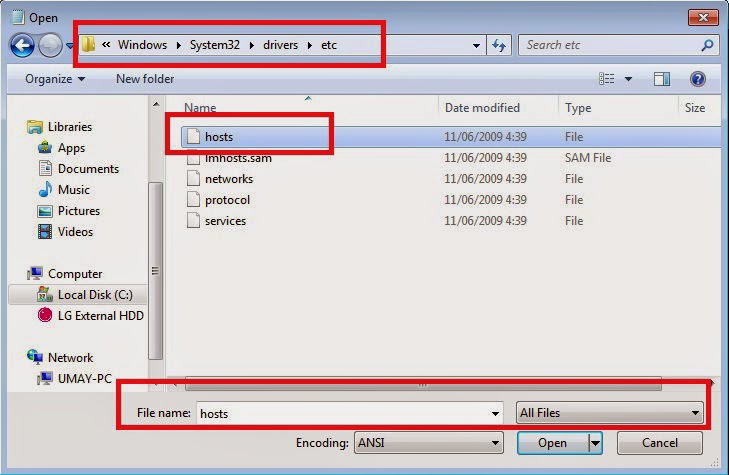
2.browse forthe file
Browse forthe filein thefolderC:WindowsSystem32driversetc.Select the FileName withthe name ofthe hosts.Dont forget tochange thefile selectiontoAllFiles.Click Open toopen it.


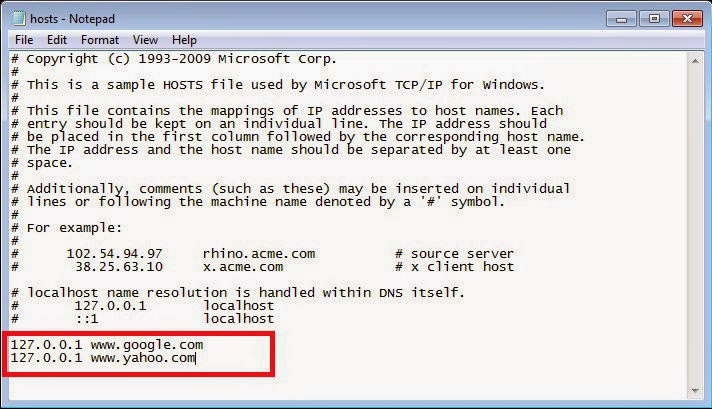
3. Addcommand
After the file isopenedwill be performingthe scriptwhere eachcomputer hasa differentview.At theend of theline, addcommandfollowed bysites thatwould like tobe blocked.For example,if you want toblock thebottomlineonthewww.example.com,addthe127.0.0.1www.google.com.If you want toaddthe blocking ofanother site, press Enter tocreatea new lineand typein the same way.


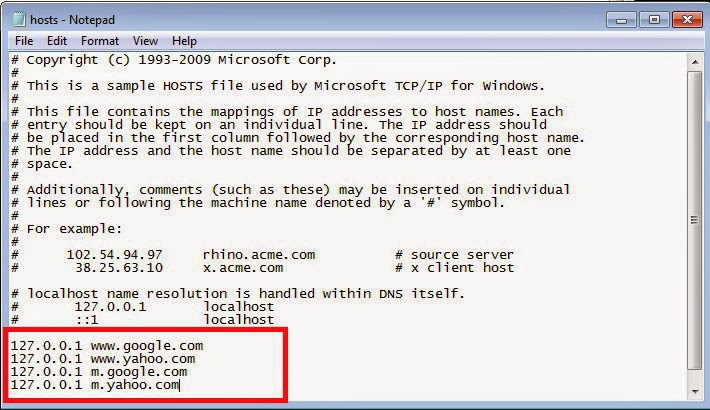
4.the mobile version
By typingthat command,you can notaccess the sitewww.google.comdesktop version.If they have a mobileversion of theaddress,youalsohave toblock itby addingmoresuch ordersin the previous step.Only this timeenter the address ofthe mobile version, e.g.127.0.0.1to m.google.com


5.Doa test run
Closenotepadand do thelastSave.Open your browser(supports allpopularbrowsers)and try toenter the address ofthe site isto provethat the sitehas beenblocked.If you want torestore to originalcondition,youstayclearof the command linethatwas createdlast.