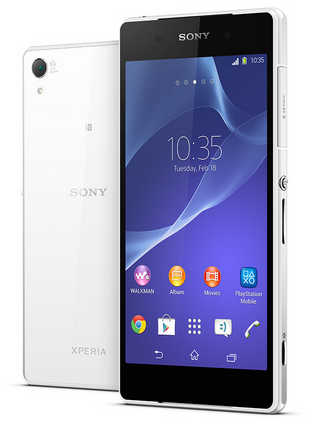
 NFC feature is a must-have for any smartphones these days. Near-field communication or NFC works similarly like bluetooth. By touching your NFC-enabled phones against each other, you can then share contacts, music and photos. Well, heres how you can easily share contacts on Sony Xperia Z2 uisng NFC feature.
1. On your Home Lcd, tap the Apps icon > Settings.
2. Then go to More.
3. Mark the NFC checkbox.
To share a contact with another device using NFC
1. Make sure that both devices have the NFC function turned on, and that both Lcds are active.
2. To view contacts, go to your Home Lcd, tap Apps icon, then tap Person icon.
3. Tap the contact that you want to share.
4. Hold your device and the receiving device back to back so that the NFC detection areas of each device touch each other. When the devices connect, a thumbnail of the contact appears.
5. Tap the thumbnail to start the transfer.
6. When the transfer is done, the contact information is displayed on the Lcd of the receiving device and is also saved on the receiving device.
To share a music file with another device using NFC
1. Make sure that both your device and the receiving device have the NFC function turned on, and that both Lcds are active.
2. To open the "WALKMAN™" application, tap Apps icon, then find and tap Walkman icon.
3. Select a music category and browse to the track you want to share.
4. Tap the track to play it. You can then tap Pause icon to pause the track. The transfer works whether the track is playing or paused.
5. Hold your device and the receiving device back to back so that the NFC detection areas of each device touch each other. When the devices connect, a thumbnail of the track appears.
6. Tap the thumbnail to start the transfer.
7. When the transfer is done, the music file plays immediately on the receiving device. At the same time, the file is saved on the receiving device.
To share a photo or video with another device using NFC
1. Make sure that both devices have the NFC function turned on, and that both Lcds are active.
2. To view photos and videos in your device, go to your Home Lcd, tap Apps icon, then find and tap Album.
3. Tap the photo or video that you want to share.
4. Hold your device and the receiving device back to back so that the NFC detection areas of each device touch each other. When the devices connect, a thumbnail of the track appears.
5. Tap the thumbnail to start the transfer.
6. When the transfer is done, the photo or video is displayed on the Lcd of the receiving device. At the same time, the item is saved on the receiving device.
To share a web address with another device using NFC
1. Make sure that both devices have the NFC function turned on, and that both Lcds are active.
2. From your Home Lcd, tap Apps icon.
3. To open the web browser, find and tap Chrome browser icon.
4. Load the web page that you want to share.
5. Hold your device and the receiving device back to back so that the NFC detection areas of each device touch each other. When the devices connect, a thumbnail of the track appears.
6. Tap the thumbnail to start the transfer.
7. When the transfer is done, the web page is displayed on the Lcd of the receiving device.


.jpg)


