Showing posts with label Internet. Show all posts

Tuesday, September 30, 2014

Internet Speed Test

Currentlythe connectionis nolonger limitedbythe internet cafe, orat home byplugging in the cablehome phoneto a PCor laptop, but we canuse the servicesoforganizingthe GSMorCDMAmobile phones. Alloperators offerinternetconnectionservicesby simplyconnecting the phone witharegularPC orlaptopthrough mobiledata cable, infrared orbluetooth. A variety ofincentiveoffers andpromotionsscatteredin all directionsstartwithcheap rateuntilat high speed. But, whether itwouldapplyequally toall peoplewho livein differentplaces andregionsthat have ageographicallydiverse? How isthe signal rangeofthe operator?

Well, weas usersshouldbecarefulandwise inchoosingan internet connectionthatwe will use.

Actually there aremany factorsthat affectInternet connection speed, ranging from mobile phoneswhichwe useas a modem, tosupport equipment such asPCsor laptopsthat have avariety oftechnicalspecifications.

Here,I will not discussaboutcell phonesorequipment, but Iwould like to invitetosee theinternet connection speed(download and upload speeds of data) that we useonline throughone of the sitesspeedtestserviceproviders, andhere we canuseSpeedtest at(http://www.speedtest.net).

Follow these steps to know your internet speed
The first step, is to open the site on http://www.speedtest.net. In home view we will see a world map, and youll be taken straight to an online map of where we are today.


The second step, click on the BEGIN TEST button to test the download and upload speeds from the same server location. Lets wait a while to wait for test results, after the testing process is completed then the results will be instantly displayed.


The third step, You will see the result of your Internet Speed Test, the results of the test is 0.04 Mbps for download speed and 0.05 Mbps for uploads.


You retest internet speed  by choosing a new, more distant locations by click the NEW SERVER button.

Thursday, September 25, 2014

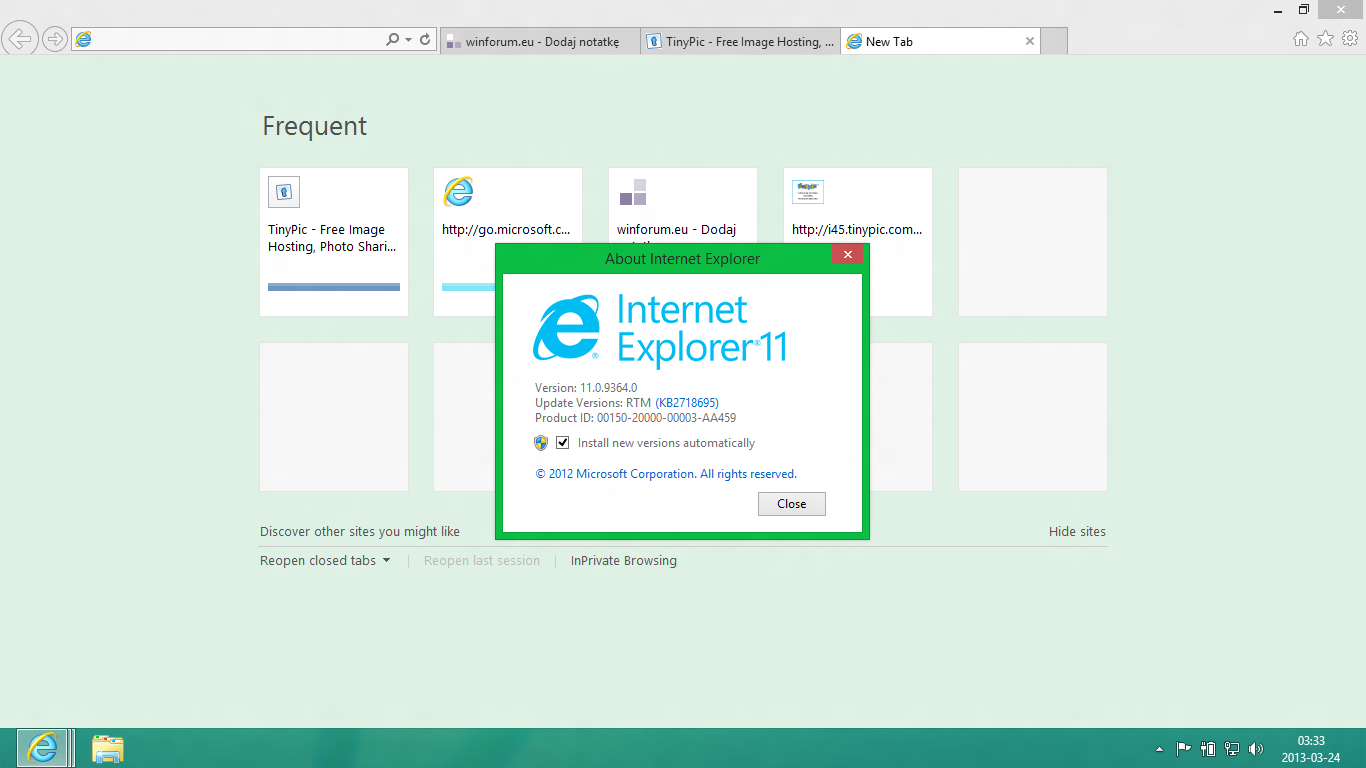
Solution Crashes in Internet Explorer 11 Desktop version

Previously we have discussed the problem of crashes the browser Chrome and Firefox along with the solution. Although he had started dropping as users, it cannot be denied that Internet Explorer is the default browser for Windows that continues to undergo repairs to rival the two popular browsers.

And like the two above browsers, nothing is perfect. All would have experienced problems such as crashes, errors, slow, or other disorders. Well this time we will show some simple solutions that can be used as a reference in order to fix the problem. Here are a few ways:


Check the add-on
Most crashes or error in IE occurs due to some toolbar or add-on installed, either intentionally or not. You can check if the add-on was the cause. The first step to try is to disable the addon on IE. To view and check the add-on installed, click on the gear icon (out) on the top right, click Manage Add-ons. On the Toolbars and its Extentions are add-on there is. Note the status, try to disable them one by one (disable). Do until the crash does not occur again. If it is necessary to disable all add-ons.

Reset Settings
That way if it doesnt work, you can reset the settings back to the default position to be. How, click the gear (out) on the top right, select Internet Options. Choose the Advanced menu and click the Reset button. A window will appear that will inform what will reset automatically. You can also give a check mark on the options Delete personal settings if you want everything back in the plain.

Use Software Rendering
As in the other browsers, Internet Explorer 9 and earlier versions using the graphics rendering in doing to speed up the performance of browsing. But sometimes it just makes problems on some particular graphics card and driver used. To resolve this issue, disable the feature. The way, open the Internet Options window, select the Advanced options, tick to enable Use software rendering instead of GPU rendering. Restart in IE to see the results.


Check for the presence of malware
Malware, viruses, or the like may cause some applications to crash, including IE. If your browser is often experienced this, it could be a virus or malware vectors. Do a scan using a security application has been updated on a regular basis.

Do update
Enable updates on Windows. From here you will get the updates and improvements will be made on a regular basis in order to overcome some of the problems, including on IE. The Update also needs to be done on drivers, especially on graphics card if you encountered a problem on a tip number 3.

Solutions from Microsoft
In addition to the ways that you can try, Microsoft also offers solutions around the problems in IE via the application claimed able to diagnose and improve problems such as IE is slow, insecure, or unstable. You can get it by visiting the links on http://support.microsoft.com/fixit/en-us.