Showing posts with label Windows. Show all posts

Sunday, November 23, 2014

First screenshot and video for Windows 8 1 with Bing

Windows-8-1-with-bing-header
We took a few weeks in which weve talked a few times ofWindows 8.1 with Bing, a version that is designed for economical equipment and has no cost to manufacturers ofhardware.The ideal operating system for tablets because it can work with only1 GB of RAM and an internal storage is enough for 16 GB.
The only difference at first compared to the current version that is paid is that thisleads Bing as default search engine.Although they say that it can be changed without any problem.Currently manufacturers like Dell or HP changed the search engine they installed Windows on their computers instead of Google or get the other partner to have some agreement.
This will make if a manufacturer wants tosave paying the license to install Windows 8.1 Proopt for use with Windows 8.1 on their computers Bing.What is not so clear is that this savings for the manufacturer also see reflected in store for the consumer.
From June 3 held in Taiwan Computex 2014,expect to see low-cost devices from various manufacturersthat use this version of Windows.This can increase the market share of Windows 8.1 that it is not all good.
Currentlybetween Windows 8 and Windows 8.1 add up to a12.64% market share, percentage that Windows 8.1 is 6.35%.Windows 7 is best used with a 50.06% share and seems to continue to rise.The Modern UI interface not really like users who do not have computers with touch screen and they missed the classic menu.
Microsoft has already said that the classic menuback soonwith an update that will release and expected for the month of August.Meanwhile rumors suggest thatthePreview of Windows 9will be available in February or March next year.

Friday, November 21, 2014

Simple Ways to improve your Windows Phone 8 Battery Life

Obviously, most of people nowadays own either an android or an iOS smartphone in their pockets. Today, Windows Phone 8, the latest and greatest mobile operating system from Microsoft joins in the war. Now several different Windows Phone 8 models like Nokia Lumia 920 and 820, HTC Windows phone 8X gradually go on sale in store.
For most of us, we use the phone to watch videos, play funny games, and chat with friends, definitely powerful and useful for us. But all of them fail in giving a long battery life, which let us feel down.

So here I collected some information on how to extend the battery life of your Windows Phone 8 as a result now there are so many information about how to improve your iPhone or android device battery life in life.What should you do when Power Down
When your battery is running low, Windows Phone 8 has a special trick to help prevent total power loss. Just go to Settings and turn on the Battery Saver option. Doing so tells the OS not to run any apps in the background or sync email automatically. You’ll still be able to make and receive calls and texts, but everything else will require manual syncing (opening up the app and choosing to sync). You can choose for Battery Saver mode to kick in only when your battery is actually low, or keep it on at all times. A little heart over the battery icon tells you when the phone is in Battery Saver mode.

Close Wi-Fi,Bluetooth and GPS/Location: All of them will drain your battery very quickly, soTurn them off if youre not using the phone.Dim Lcd brightness:  The brighter your Lcd, the faster you’ll eat up battery life. So dim your Lcd if you want make your battery last longer.Turn off push email:  If you have an email account on your device, think about whether you need emails pushed to it, or if you could change the settings to look for emails when you open the account.Windows Mobile - Settings in emails account > Synchronisation settings > Download new content

Set your phone in Airplane mode:  If you dont want to completely shut off your phone, switch to airplane mode to shut off all of the radios, and switch back out of airplane mode only when you need to make a call or send a text message.

Close unnecessary apps:  A lot of applications continue to run in the background or get their own push notifications. Close these applications to ensure that your phone isnt still pinging the network without your knowledge.Charge backups:  Carry a fully charged spare battery and also buy a portable phone charger around 10,000mah and it will charge your phone in no time.Use Battery Level for WP8 Apps to help youDeveloped by Alex Golesh, it is such a simple app which provides "missing feature" of Windows Phone 8 - the battery level percentage on the main Lcd and the lock Lcd. You can just pin the app to see Live Tile with battery status and remaining charge percentage on Windows Phone 8 main Lcd and lock Lcd.
The app is completely free.
Once there have more battery Saver Apps update in Windows phone 8 app store,I will offer to you in time.Other Tips

You should turn off the Lcd display immediately when finished with tasks, just hit the power button quickly to turn off the display for battery saving.

Saturday, November 15, 2014

Verizon Samsung Huron Windows Phone passes through FCC filing


Samsung is really in preparations of a Windows Phone handset, codenamed Huron for the Stateside carrier Verizon Wireless, as this smartphone has been in the news section for a while now.

Today, we receive reports of this very likely Windows Phone passing through the Federal Communications Commission certification filing, where the phone is to feature bands from LTE and CDMA networks for Verizon on board alongside GSM and HSPA connectivity radios for worldwide roaming services. The phone appears to be model named as SM-W750V, which of course has to do some thing with the Big Red United States network provider. We also read the chances to see a rumored five-inches display panel, if everything goes official at this months Mobile World Congress event.

Source: FCC, Engadget

Thursday, November 6, 2014

Samsung ATIV Tab 3 unveiled as world’s thinnest Windows 8 tablet

Samsung has expanded its tablet range with the Samsung ATIV Tab 3 lining up as the world’s thinnest Windows 8 tablet.


Cut from the same cloth as the company’s Android range of Samsung Galaxy Tab offerings, the ATIV Tab 3 pairs a sleek form factor with Microsoft’s OS and a range of premium innards. The Microsoft Surface Pro rival lines up at just 8.2mm thick and has been announced alongside the convertible Samsung ATIV Q.

“These innovative devices have been designed with busy people in mind, and the adaptability they offer is better suited to busy lives than any tablet on the market,” Simon Stanford, Vice President of IT & Mobile Division for Samsung Electronics UK & Ireland said of the two ATIV Tab 3 and ATIV Q.


Samsung ATIV Tab 3 Features


More than just a super skinny Windows 8 device, the Samsung ATIV Tab 3 plays host to a vast array of
premium components, kicked off with the tablet’s 10.1-inch display. Packing a 1366 x 766p resolution, the touchscreen offering also supports a 1024 reaction point digitiser compatible with the Samsung S-Pen stylus which comes with the tablet.

Weighing in at just 550g, the Samsung ATIV Tab 3 is a svelte offering, with the arrival of Samsung S Note 2.0 providing improved input options and more detailed handwriting recognition over past S-Pen hosting tablets and convertibles.

Powered by an Intel ATOM Z2760 processor, the Samsung ATIV Tab 3 specs sheet is further enhanced by 2GB of RAM and 64GB of internal storage. As is now customary, the ATIV Tab 3 boasts cameras both front and rear, with the integrated snappers able to shoot video at 720p.

With a claimed 10 hour battery life, the Samsung ATIV Tab 3, which is available in white, sees the usual Wi-Fi and Bluetooth connectivity options further enhanced by a single micro USB 2.0 connection alongside microHDMI and microSD ports.

Samsung ATIV Tab 3 Release Date and Price

Despite having formally unveiled its latest 10.1-inch tablet, Samsung is yet to confirm a finalised Samsung ATIV Tab 3 release date. At present the device is set to hit retailers ‘later this year’. A Samsung ATIV Tab 3 price is also still up in the air.

Thursday, October 30, 2014

How to freely enjoy your DVD collections on Windows 8 1 8

If you get a new Windows 8 or 8.1 computer, you might be surprised to find out that it wont play your DVDs as Microsoft. In fact, Windows 8.1 still can’t play DVD movies out of the box. To get DVD playback from Microsoft, you’d have to buy the Windows 8 Pro Pack for $100 and the Media Center Pack for $10 — and that only gets you DVD playback!


Then how to avoid paying Microsoft another $110 and let you enjoy DVD collections freely? Here offers the best way to get DVD playback on Windows Windows 8.1/8.

What you need:

To play your DVD movies without any hassles, you need to look for a DVD ripper that is comptible with Windows 8/8.1 to help you rip DVD in Windows computer. Look no further! You’ve come to the right place.

Here, Pavtube DVDAid is highly recommended for its good reputation, easy-to-use interface and quick conversion speed which makes converting DVD movies in Windows 8/Windows 8.1 AS EASY AS A PIE. In addition, it provides hundreds of video presets for portable devices like iPhone 6, iPhone 6 Plus, iPad Air, Samsung Galaxy Note 4, etc. Don’t hesitate to get it now and follow the easy steps below to make your DVDs playable anywhere in Windows 8/Windows 8.1.

How to rip and convert DVD in Windows 8/Windows 8.1

1. Load DVD movies

Click "DVD disc" icon to load DVD movie files directly from your DVD disc via the DVD ROM.


(Note: Dont forget to select subtitle and audio track for output.)

2. Choose an output format

Click "Format" drop-down list and choose proper format for different using.


For instance, if you simply want to back up DVD to external hard drive, here are two solutions:

a. Click the "computer" icon on the top to output 1:1 DVD file exactly the same as original.

b. Select "Copy > Directly Copy" in format list to output an intact VOB file of the main title.

Tip: If you are not satisfied with default specs, then click "Settings" to enter Profiles Settings windows. You can customize video frame rate, bitrate, size and other settings freely. (It does not work for directly copy)


3. Start ripping

Click "Convert" button to start ripping Blu-ray movies on your Windows 8.1/8. When finished, click "Open" button to get the resulted video. Then connect your portable devices to your computer and transfer ripped DVD movie for watching and viewing with best video quality on the go.

Saturday, October 25, 2014

Five key features of windows 8

1) Windows 8 is touch friendly, it has on-screen keyboard and handwriting recognition, the menus will appear as tiles which will be quicker and easier for a user to get access to a program.

 
2) It supports multiple monitors, if you connect two monitors then the start screen will appear on one monitor and the desktop will appear on the other. You can have two taskbar with different icons and can set different backgrounds too.


3)The old windows start menu has been changed you don’t get the windows iconic start menus instead of it you will get a start screen, on clicking the start  button in windows 8 it will take you back to the same touch menu tiles start screen, one that we see in Windows Phone 7s home screen.

 
4) Windows 8 has charms functionality, which gives you a quick access to several common features like search, sharing, the start screen, hardware device, and settings.

 
5)The most important features that windows 8 includes is Windows store, you can buy windows apps and a ecosystem for developers.It may also include some free apps.


Saturday, October 4, 2014

Mouse and Keyboard for Windows Tablets

Microsoft presents the mouse and keyboard for tablets
Manufacturers of computer operating systems Microsoft puts mouse control devices and panel type keyboard for tablet users.

"With a new mouse and keyboard products, Microsoft Hardware device to distract supporters move to Windows 8 and Windows 7 RT,"
call the Rich Brown of CNET.

Four new Microsoft device using Bluetooth connection and is aimed at Windows 8 tablet and laptop are:

Mobile Keyboard Wedge. This Keyboard has a cover that doubles as a buffer tablets in standing position.
"Although only as a rubber cover, Microsoft products do not offer the ability to charge the connectivity as Apple iPad Dock," call it Brown.

The second product has a Mouse Touch Wedge that design elliptical. Products that have a scroll control touch on the surface.

Brown said the Touch Mouse not suitable Wedge used when serious work because of its small size mouse.

Then, Touch the Mouse with Sculpt like a mouse on the market computer enhancements. Products that have a scroll control on the surface of the square instead of the scroll wheel.

The final product is Sculpt Travel Keyboard with curved shape. The product is called Brown will complement the range of products as the brand that Sculpt is more affordable than Wedge series products.

Wednesday, October 1, 2014

Manage Hard Drive Partitions on Windows XP Vista 7


If you have a computer or laptop with the number of partition is only one part of an alias is not shared at all hard disk, here we will discuss how to easily divide a hard drive Partition of Windows XP, Vista, Seven. How to manage a hard drive partition which we will discuss these proven efficacious and fast and does not damage the system or data on your computer. Lets learn together!


Manage Hard Drive Partitions on Windows XP, Vista, 7.

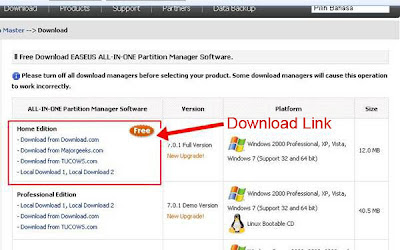
Software we need is EASEUS Partition Master Home Edition 7.0.1 free. You can download it at this link:
http://www.partition-tool.com/download.htm


With EASEUS Partition Master 7.0.1 software Home Edition we can manage a hard drive partition without having to re-install the Operating System, we can manage a hard drive partition without destroying the system or data.

Heres how to easily manage a hard drive Partition of Windows XP, Vista, Seven:

Install the software and run EASEUS Partition Master Home Edition 7.0.1.
This example uses a 500 GB harddrive and will be divided into 2 partitions.

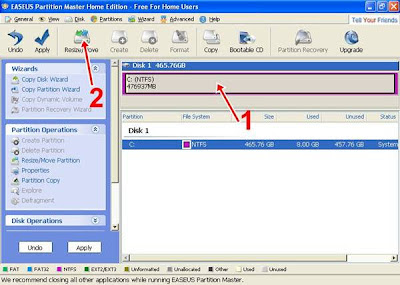
1. Select a Partition active
2. Click Resize/Move menu


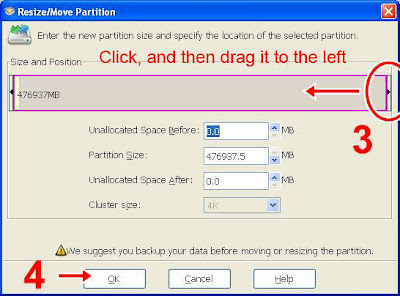
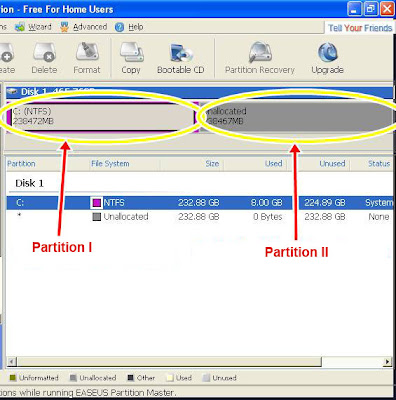
3. Then slide an empty partition like arrow no. 3 or the contents of the Partition Size.
4. After you set the partition you want and then click OK. There will be a result of the "Unallocated" partition.


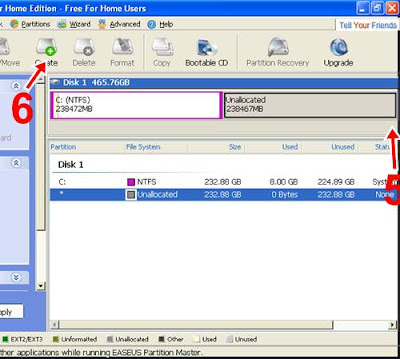
5. Select the Unallocated partition.
6. click the CREATE menu to create a second partition.


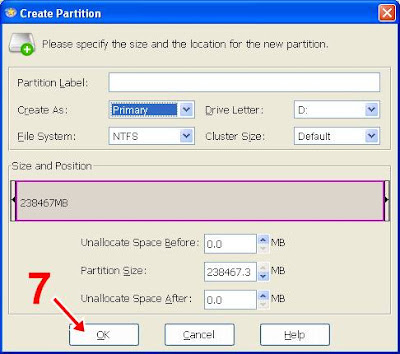
7. Enter Partition Label or name then click OK.


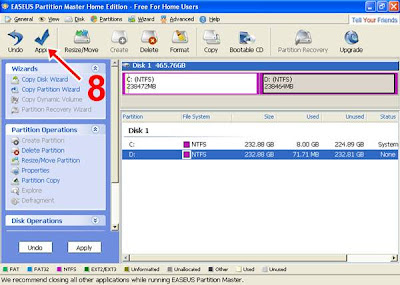
8. Then click APPLY to make the permanent process of dividing the hard drive in windows XP, Vista, Seven.


9. When the message appears, click "Yes" then your computer restarts on its own
10. When you boot the computer then the process will run in the Division of partitions, wait until your computer restarted and booted up windows work normally.


And your hard disk is divided into 2 parts. You can divide to suit your needs for example 3 or 4 parts of the hard drive partition.

Good luck!