Showing posts with label Widgets. Show all posts

Wednesday, October 1, 2014

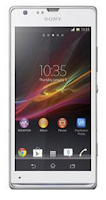
How to Add and Resize Widgets on Sony Xperia SP


Adding Widgets on your HomeLcd will help you improve your productivity in using your Sony Xperia SP. If you dont know what widgets means, Widgets are small applications that you can directly use on your HomeLcd. These will serve as your shortcut icon so will no longer need to access your Menu.


Follow these steps on how to add widgets on your HomeLcd.

  • On your devices homeLcd, press the Four Horizontal Line icon.
  • After doing so, tap on Add.
  • Then go to Widgets and select a widget.

How to resize a Widget:
  • Tap and hold the widget you want to resize until it magnifies and the device vibrates. You can tell if the widget is resizeable if the highlighted frame and resizing dots appear.
  • You just need to Drag the dots for your preferred size.
  • Then tap anywhere on the HomeLcd to confirm the new size of the widget.
Friday, September 26, 2014

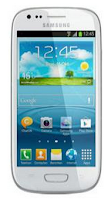
How to Add and Remove Widgets on Samsung Galaxy Express


Adding Widgets on your HomeLcd will help you improve your productivity in using your Samsung Galaxy Express. If you dont know what widgets means, Widgets are small applications that you can directly use on your HomeLcd. These will serve as your shortcut icon so will no longer need to access the Menu.


Adding a Widget:

1. Press Home key button.

2. Navigate to the desired Home Page.

3. Touch and hold on an empty area of the Lcd.

4. Tap Apps and widgets.

5. Tap the Widgets tab at the top of the Lcd.

6. Press and hold an available Widget to position it on the current Lcd.

Removing a Widget:

1. Touch and hold a Widget until you can move it around on the Lcd.

2. Drag the Widget over the Delete icon it.

As you place the Widget into the Trash, both items turn red.